
Table of Contents
Introduction to Google Gemini
Google's Gemini AI represents a breakthrough in multimodal AI capabilities, offering developers unprecedented power to build intelligent applications. As Flutter developers in 2025, we now have access to Gemini's advanced features through the official Google AI Dart SDK, making it easier than ever to create AI-powered mobile applications.
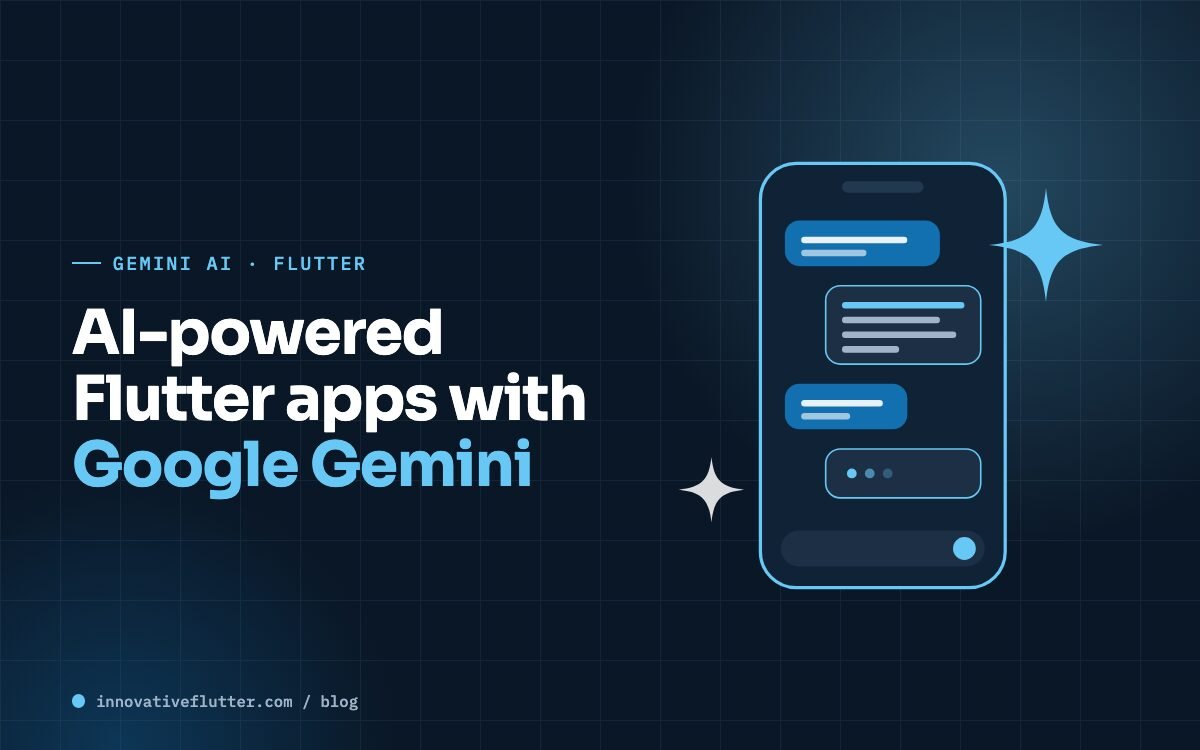
Gemini stands out from other AI models with its ability to understand and generate not just text, but also process images, audio, and even video content. This multimodal approach opens up exciting possibilities for Flutter developers looking to create more intuitive and intelligent user experiences.
Prerequisites and Setup
Before we dive into the implementation, let's ensure you have everything set up correctly. You'll need:
- Flutter 3.16.0 or higher (check with
flutter --version) - Dart 3.2.0 or higher
- A Google AI Studio API key (get one at Google AI Studio)
- Basic understanding of Flutter state management
- Familiarity with async/await patterns in Dart
Getting Started with the Google AI Dart SDK
First, let's add the Google AI Dart SDK to your Flutter project. Open your pubspec.yaml
file and add the following dependency:
dependencies:
  google_generative_ai: ^0.2.0
  flutter:
    sdk: flutter
  http: ^1.1.0
  flutter_dotenv: ^5.1.0  # For secure API key management
Run flutter pub get to install the dependencies. We're also including
flutter_dotenv for secure API key management - never hardcode your API keys!
Setting Up Environment Variables
Create a .env file in your project root:
GEMINI_API_KEY=your_api_key_here
Don't forget to add .env to your .gitignore
file to prevent accidentally committing your API key.
Basic Gemini Integration
Now let's create a simple service class to handle our Gemini AI interactions:
import 'package:google_generative_ai/google_generative_ai.dart';
import 'package:flutter_dotenv/flutter_dotenv.dart';

class GeminiService {
  late final GenerativeModel _model;

  GeminiService() {
    final apiKey = dotenv.env['GEMINI_API_KEY'];
    if (apiKey == null) {
      throw Exception('GEMINI_API_KEY not found in environment variables');
    }

    // Initialize the model
    _model = GenerativeModel(
      model: 'gemini-pro',
      apiKey: apiKey,
      generationConfig: GenerationConfig(
        temperature: 0.7,
        topK: 40,
        topP: 0.95,
        maxOutputTokens: 1024,
      ),
      safetySettings: [
        SafetySetting(HarmCategory.harassment, HarmBlockThreshold.mediumAndAbove),
        SafetySetting(HarmCategory.hateSpeech, HarmBlockThreshold.mediumAndAbove),
        SafetySetting(HarmCategory.sexuallyExplicit, HarmBlockThreshold.mediumAndAbove),
        SafetySetting(HarmCategory.dangerousContent, HarmBlockThreshold.mediumAndAbove),
      ],
    );
  }

  Future generateContent(String prompt) async {
    try {
      final content = [Content.text(prompt)];
      final response = await _model.generateContent(content);

      return response.text ?? 'No response generated';
    } catch (e) {
      throw Exception('Failed to generate content: $e');
    }
  }
}
Building a Chat Interface
Let's create a beautiful chat interface that leverages Gemini's conversational abilities. We'll build a stateful widget that manages the chat session:
import 'package:flutter/material.dart';
import 'package:google_generative_ai/google_generative_ai.dart';

class GeminiChatScreen extends StatefulWidget {
  const GeminiChatScreen({Key? key}) : super(key: key);

  @override
  State createState() => _GeminiChatScreenState();
}

class _GeminiChatScreenState extends State {
  final TextEditingController _controller = TextEditingController();
  final List _messages = [];
  late final ChatSession _chatSession;
  bool _isLoading = false;

  @override
  void initState() {
    super.initState();
    _initializeChat();
  }

  void _initializeChat() {
    final model = GenerativeModel(
      model: 'gemini-pro',
      apiKey: dotenv.env['GEMINI_API_KEY']!,
    );

    _chatSession = model.startChat();

    // Add welcome message
    setState(() {
      _messages.add(ChatMessage(
        text: 'Hello! I\'m Gemini AI. How can I help you today?',
        isUser: false,
        timestamp: DateTime.now(),
      ));
    });
  }

  Future _sendMessage() async {
    if (_controller.text.trim().isEmpty) return;

    final userMessage = _controller.text;
    _controller.clear();

    // Add user message to chat
    setState(() {
      _messages.add(ChatMessage(
        text: userMessage,
        isUser: true,
        timestamp: DateTime.now(),
      ));
      _isLoading = true;
    });

    try {
      final response = await _chatSession.sendMessage(
        Content.text(userMessage),
      );

      // Add AI response to chat
      setState(() {
        _messages.add(ChatMessage(
          text: response.text ?? 'No response',
          isUser: false,
          timestamp: DateTime.now(),
        ));
      });
    } catch (e) {
      // Handle error
      setState(() {
        _messages.add(ChatMessage(
          text: 'Error: ${e.toString()}',
          isUser: false,
          timestamp: DateTime.now(),
          isError: true,
        ));
      });
    } finally {
      setState(() {
        _isLoading = false;
      });
    }
  }

  @override
  Widget build(BuildContext context) {
    return Scaffold(
      appBar: AppBar(
        title: const Text('Gemini AI Chat'),
        backgroundColor: Theme.of(context).colorScheme.inversePrimary,
      ),
      body: Column(
        children: [
          Expanded(
            child: ListView.builder(
              padding: const EdgeInsets.all(16),
              itemCount: _messages.length,
              itemBuilder: (context, index) {
                final message = _messages[index];
                return ChatBubble(message: message);
              },
            ),
          ),
          if (_isLoading)
            const LinearProgressIndicator(),
          _buildInputArea(),
        ],
      ),
    );
  }

  Widget _buildInputArea() {
    return Container(
      padding: const EdgeInsets.all(16),
      decoration: BoxDecoration(
        color: Colors.grey[100],
        boxShadow: [
          BoxShadow(
            offset: const Offset(0, -2),
            blurRadius: 4,
            color: Colors.black.withOpacity(0.1),
          ),
        ],
      ),
      child: Row(
        children: [
          Expanded(
            child: TextField(
              controller: _controller,
              decoration: InputDecoration(
                hintText: 'Type your message...',
                filled: true,
                fillColor: Colors.white,
                border: OutlineInputBorder(
                  borderRadius: BorderRadius.circular(24),
                  borderSide: BorderSide.none,
                ),
                contentPadding: const EdgeInsets.symmetric(
                  horizontal: 20,
                  vertical: 12,
                ),
              ),
              onSubmitted: (_) => _sendMessage(),
            ),
          ),
          const SizedBox(width: 8),
          CircleAvatar(
            backgroundColor: Theme.of(context).primaryColor,
            child: IconButton(
              icon: const Icon(Icons.send, color: Colors.white),
              onPressed: _sendMessage,
            ),
          ),
        ],
      ),
    );
  }
}
Implementing Streaming Responses
One of Gemini's powerful features is the ability to stream responses, providing a more interactive experience. Let's modify our chat to support streaming:
Future _sendMessageWithStreaming() async {
  if (_controller.text.trim().isEmpty) return;

  final userMessage = _controller.text;
  _controller.clear();

  // Add user message
  setState(() {
    _messages.add(ChatMessage(
      text: userMessage,
      isUser: true,
      timestamp: DateTime.now(),
    ));
    _isLoading = true;
  });

  // Create a message for the AI response that we'll update
  final aiMessage = ChatMessage(
    text: '',
    isUser: false,
    timestamp: DateTime.now(),
  );

  setState(() {
    _messages.add(aiMessage);
  });

  try {
    final response = _chatSession.sendMessageStream(
      Content.text(userMessage),
    );

    String fullResponse = '';

    await for (final chunk in response) {
      fullResponse += chunk.text ?? '';

      // Update the AI message in real-time
      setState(() {
        aiMessage.text = fullResponse;
      });
    }
  } catch (e) {
    setState(() {
      aiMessage.text = 'Error: ${e.toString()}';
      aiMessage.isError = true;
    });
  } finally {
    setState(() {
      _isLoading = false;
    });
  }
}
Multimodal Capabilities
Gemini's multimodal capabilities allow it to understand images alongside text. Let's add image analysis to our chat:
import 'package:image_picker/image_picker.dart';
import 'dart:io';

Future _sendImageWithPrompt(File imageFile, String prompt) async {
  setState(() {
    _isLoading = true;
  });

  try {
    // Read image bytes
    final bytes = await imageFile.readAsBytes();

    // Create content with both image and text
    final content = [
      Content.multi([
        TextPart(prompt),
        DataPart('image/jpeg', bytes),
      ])
    ];

    // For image analysis, we need to use gemini-pro-vision
    final model = GenerativeModel(
      model: 'gemini-pro-vision',
      apiKey: dotenv.env['GEMINI_API_KEY']!,
    );

    final response = await model.generateContent(content);

    setState(() {
      _messages.add(ChatMessage(
        text: response.text ?? 'No response',
        isUser: false,
        timestamp: DateTime.now(),
        attachedImage: imageFile,
      ));
    });
  } catch (e) {
    print('Error analyzing image: $e');
  } finally {
    setState(() {
      _isLoading = false;
    });
  }
}

// Add image picker button to your UI
IconButton(
  icon: const Icon(Icons.image),
  onPressed: () async {
    final ImagePicker picker = ImagePicker();
    final XFile? image = await picker.pickImage(source: ImageSource.gallery);

    if (image != null) {
      final file = File(image.path);
      await _sendImageWithPrompt(file, 'What can you tell me about this image?');
    }
  },
)
Best Practices and Security
When building production-ready AI applications with Gemini, consider these best practices:
1. API Key Security
- Never hardcode API keys in your source code
- Use environment variables or secure key management services
- Implement API key rotation policies
- Consider using a backend proxy for API calls in production
2. Error Handling
enum GeminiErrorType {
  networkError,
  quotaExceeded,
  invalidApiKey,
  contentFiltered,
  unknown
}

class GeminiErrorHandler {
  static GeminiErrorType identifyError(dynamic error) {
    if (error.toString().contains('quota')) {
      return GeminiErrorType.quotaExceeded;
    } else if (error.toString().contains('API key')) {
      return GeminiErrorType.invalidApiKey;
    } else if (error.toString().contains('blocked')) {
      return GeminiErrorType.contentFiltered;
    } else if (error.toString().contains('network')) {
      return GeminiErrorType.networkError;
    }
    return GeminiErrorType.unknown;
  }

  static String getErrorMessage(GeminiErrorType type) {
    switch (type) {
      case GeminiErrorType.quotaExceeded:
        return 'API quota exceeded. Please try again later.';
      case GeminiErrorType.invalidApiKey:
        return 'Invalid API key. Please check your configuration.';
      case GeminiErrorType.contentFiltered:
        return 'Content was filtered due to safety settings.';
      case GeminiErrorType.networkError:
        return 'Network error. Please check your connection.';
      default:
        return 'An unexpected error occurred. Please try again.';
    }
  }
}
3. Rate Limiting
Implement rate limiting to prevent API abuse and manage costs:
class RateLimiter {
  final int maxRequests;
  final Duration window;
  final List _timestamps = [];

  RateLimiter({
    this.maxRequests = 60,
    this.window = const Duration(minutes: 1),
  });

  bool canMakeRequest() {
    final now = DateTime.now();
    _timestamps.removeWhere(
      (timestamp) => now.difference(timestamp) > window,
    );

    if (_timestamps.length < maxRequests) {
      _timestamps.add(now);
      return true;
    }
    return false;
  }

  Duration timeUntilNextRequest() {
    if (_timestamps.isEmpty) return Duration.zero;

    final oldestTimestamp = _timestamps.first;
    final timePassed = DateTime.now().difference(oldestTimestamp);

    if (timePassed > window) return Duration.zero;

    return window - timePassed;
  }
}
4. Content Caching
Cache responses to improve performance and reduce API calls:
import 'package:shared_preferences/shared_preferences.dart';
import 'dart:convert';

class GeminiCache {
  static const String _cacheKey = 'gemini_cache';
  static const Duration _cacheExpiry = Duration(hours: 24);

  static Future getCachedResponse(String prompt) async {
    final prefs = await SharedPreferences.getInstance();
    final cacheData = prefs.getString(_cacheKey);

    if (cacheData == null) return null;

    final cache = json.decode(cacheData) as Map;
    final entry = cache[prompt];

    if (entry == null) return null;

    final timestamp = DateTime.parse(entry['timestamp']);
    if (DateTime.now().difference(timestamp) > _cacheExpiry) {
      return null;
    }

    return entry['response'];
  }

  static Future cacheResponse(String prompt, String response) async {
    final prefs = await SharedPreferences.getInstance();
    final cacheData = prefs.getString(_cacheKey);

    final cache = cacheData != null
        ? json.decode(cacheData) as Map
        : {};

    cache[prompt] = {
      'response': response,
      'timestamp': DateTime.now().toIso8601String(),
    };

    await prefs.setString(_cacheKey, json.encode(cache));
  }
}
Advanced Features
Function Calling
Gemini supports function calling, allowing the AI to interact with your app's functionality:
final functions = [
  FunctionDeclaration(
    'getCurrentWeather',
    'Get the current weather for a location',
    Schema(
      SchemaType.object,
      properties: {
        'location': Schema(SchemaType.string),
        'unit': Schema(
          SchemaType.string,
          enumValues: ['celsius', 'fahrenheit'],
        ),
      },
      requiredProperties: ['location'],
    ),
  ),
];

final model = GenerativeModel(
  model: 'gemini-pro',
  apiKey: apiKey,
  tools: [Tool(functionDeclarations: functions)],
);

// Handle function calls in responses
final response = await chat.sendMessage(content);
final functionCall = response.functionCalls.firstOrNull;

if (functionCall != null) {
  final result = await executeFunction(functionCall);
  // Send function result back to continue conversation
  await chat.sendMessage(Content.functionResponse(
    functionCall.name,
    result,
  ));
}
Custom System Instructions
Set up system instructions to customize Gemini's behavior:
final chat = model.startChat(
  history: [
    Content.text('''You are a helpful Flutter development assistant.
    You specialize in:
    - Flutter best practices
    - Dart programming
    - Mobile app architecture
    - Performance optimization

    Always provide code examples when relevant and explain your reasoning.
    Format code blocks with proper syntax highlighting.'''),
    Content.model([TextPart('Understood! I\'ll help you with Flutter development.')]),
  ],
);
Conclusion and Next Steps
Congratulations! You've learned how to integrate Google's Gemini AI into your Flutter applications. We've covered everything from basic setup to advanced features like streaming responses and multimodal capabilities. Gemini's powerful AI capabilities combined with Flutter's cross-platform framework create endless possibilities for intelligent mobile applications.
Key Takeaways
- Gemini provides state-of-the-art AI capabilities with easy Flutter integration
- The Google AI Dart SDK simplifies implementation with type-safe APIs
- Streaming responses create more interactive user experiences
- Multimodal support enables rich interactions with images and text
- Proper error handling and security practices are essential for production apps
Next Steps
- Experiment with Different Models: Try
gemini-pro-visionfor image understanding - Build a Complete App: Create a full-featured AI assistant with persistent chat history
- Optimize Performance: Implement caching and efficient state management
- Add Voice Integration: Combine Gemini with speech-to-text for voice interactions
- Deploy to Production: Set up proper backend infrastructure for API key management
Related Articles
TensorFlow Lite in Flutter: Building Smart Mobile Apps
Learn on-device machine learning with TensorFlow Lite
Creating AI Chatbots with Flutter and LangChain
Build intelligent conversational interfaces
ML Kit Vision APIs in Flutter
Computer vision features for Flutter apps